No description
 c4c758fbbd
Implemented several major enhancements to the Claude Usage Widget: Features Added: - Dynamic tray icon with circular progress pie chart showing usage percentage - Configurable tray display mode (Session/Weekly) and refresh interval (10-300s, default 30s) - Optional percentage text overlay in tray icon (default: off) - Independent color customization for tray icon (normal/warning/danger states) - Static color mode toggle for both main window and tray icon (single color vs gradients) - Comprehensive theming system for main widget and settings window: * Background gradient customization * Primary and secondary text color controls * Title bar color with opacity slider * Border color with opacity slider - Collapsible settings sections with smooth animations (minimized by default) - Custom dark-themed scrollbar with purple accents matching app theme - Real-time theme synchronization between main and settings windows Technical Implementation: - Zero-dependency tray icon generation using Electron's built-in Canvas API via hidden BrowserWindow - IPC-based bi-directional communication for real-time theme updates - Persistent settings storage using electron-store - Conditional UI rendering for static vs gradient color modes - All changes maintain upstream compatibility (no external npm dependencies added) Files Modified: - main.js: Added icon generator window, tray icon generation, theme IPC handlers - preload.js: Added IPC methods for tray settings and theme management - src/renderer/app.js: Added theme application and usage data forwarding - src/renderer/settings.html: Added theming controls, collapsible sections, toggles - src/renderer/settings.css: Added styles for new UI components and custom scrollbar - src/renderer/settings.js: Added theme/tray settings logic with real-time updates Files Added: - src/icon-generator.html: Hidden window for canvas-based tray icon generation 🤖 Generated with [Claude Code](https://claude.com/claude-code) Co-Authored-By: Claude Sonnet 4.5 <noreply@anthropic.com> |
||
|---|---|---|
| .claude | ||
| assets | ||
| src | ||
| .gitignore | ||
| INSTALL.md | ||
| main.js | ||
| package.json | ||
| preload.js | ||
| QUICKSTART.md | ||
| README.md | ||
Claude Usage Widget
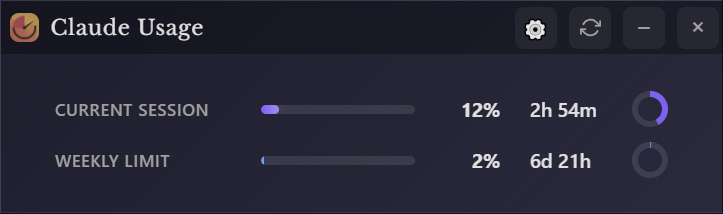
A beautiful, standalone Windows desktop widget that displays your Claude.ai usage statistics in real-time.
Features
- 🎯 Real-time Usage Tracking - Monitor both session and weekly usage limits
- 📊 Visual Progress Bars - Clean, gradient progress indicators
- ⏱️ Countdown Timers - Circular timers showing time until reset
- 🔄 Auto-refresh - Updates every 5 minutes automatically
- 🎨 Modern UI - Sleek, draggable widget with dark theme
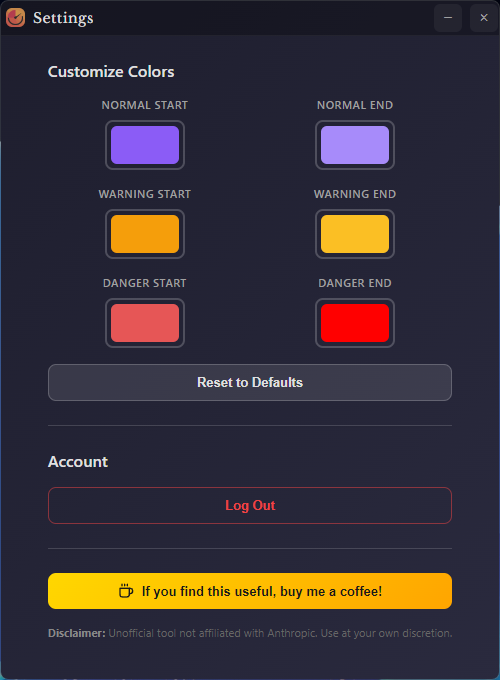
- 🎨 Customizable Colors - Personalize progress bar colors for each usage level
- ⚙️ Settings Panel - Easy-to-use settings window for customization
- 🔒 Secure - Encrypted credential storage
- 📍 Always on Top - Stays visible across all workspaces
- 💾 System Tray - Minimizes to tray for easy access
Installation
Download Pre-built Release
- Download the latest
Claude-Usage-Widget-Setup.exefrom Releases - Run the installer
- Launch "Claude Usage Widget" from Start Menu
Build from Source
Prerequisites:
- Node.js 18+ (Download)
- npm (comes with Node.js)
Steps:
# Clone the repository
git clone https://github.com/yourusername/claude-usage-widget.git
cd claude-usage-widget

# Install dependencies
npm install

# Run in development mode
npm start

# Build installer for Windows
npm run build:win
The installer will be created in the dist/ folder.
Usage
First Launch
- Launch the widget
- Click "Login to Claude" when prompted
- A browser window will open - login to your Claude.ai account
- The widget will automatically capture your session
- Usage data will start displaying immediately
Widget Controls
- Drag - Click and drag the title bar to move the widget
- Refresh - Click the refresh icon to update data immediately
- Minimize - Click the minus icon to hide to system tray
- Close - Click the X to minimize to tray (doesn't exit)
System Tray Menu
Right-click the tray icon for:
- Show/Hide widget
- Refresh usage data
- Re-login (if session expires)
- Settings - Open customization panel
- Exit application
Understanding the Display
Current Session
- Progress Bar - Shows usage from 0-100%
- Timer - Time remaining until 5-hour session resets
- Color Coding:
- Purple: Normal usage (0-74%)
- Orange: High usage (75-89%)
- Red: Critical usage (90-100%)
Weekly Limit
- Progress Bar - Shows weekly usage from 0-100%
- Timer - Time remaining until weekly reset (Wednesdays 7:00 AM)
- Same color coding as session usage
Customization
Color Preferences
Customize the progress bar colors to match your preferences:
- Right-click the system tray icon
- Select "Settings"
- Use the color pickers to customize each usage level:
- Normal (0-74% usage) - Default: Purple gradient
- Warning (75-89% usage) - Default: Orange gradient
- Danger (90-100% usage) - Default: Red gradient
- Changes apply instantly to the main widget
- Click "Reset to Defaults" to restore original colors
Auto-start on Windows Boot
- Press
Win + R - Type
shell:startupand press Enter - Create a shortcut to the widget executable in this folder
Custom Refresh Interval
Edit src/renderer/app.js:
const UPDATE_INTERVAL = 5 * 60 * 1000; // Change to your preference (in milliseconds)
Troubleshooting
"Login Required" keeps appearing
- Your Claude.ai session may have expired
- Click "Login to Claude" to re-authenticate
- Check that you're logging into the correct account
Widget not updating
- Check your internet connection
- Click the refresh button manually
- Ensure Claude.ai is accessible in your region
- Try re-logging in from the system tray menu
Widget position not saving
- Window position is now saved automatically when you drag it
- Position will be restored when you restart the app
Build errors
# Clear cache and reinstall
rm -rf node_modules package-lock.json
npm install
Privacy & Security
- Your session credentials are stored locally only using encrypted storage
- No data is sent to any third-party servers
- The widget only communicates with Claude.ai official API
- Session cookies are stored using Electron's secure storage
Technical Details
Built with:
- Electron 28.0.0
- Pure JavaScript (no framework overhead)
- Native Node.js APIs
- electron-store for secure storage
API Endpoint:
https://claude.ai/api/organizations/{org_id}/usage
Storage Location:
%APPDATA%/claude-usage-widget/config.json (encrypted)
Roadmap
- macOS support
- Linux support
- Custom color themes
- Notification alerts at usage thresholds
- Remember window position
- Settings panel
- Usage history graphs
- Multiple account support
- Keyboard shortcuts
Contributing
Contributions are welcome! Please feel free to submit a Pull Request.
License
MIT License - feel free to use and modify as needed.
Disclaimer
This is an unofficial tool and is not affiliated with or endorsed by Anthropic. Use at your own discretion.
Support
If you encounter issues:
- Check the Issues page
- Create a new issue with details about your problem
- Include your OS version and any error messages
Made with ❤️ for the Claude.ai community