 seton
aec4d2ecc4
seton
aec4d2ecc4
Skip 0.2.6: this rolls up two releases' worth of work (the Mesh LOD and Profiler modules and the map labels). Add 0.2.7 to the update manifest and drop the oldest entry to keep the last three releases listed. |
||
|---|---|---|
| dist | ||
| img | ||
| native | ||
| src | ||
| .gitignore | ||
| Directory.Build.props | ||
| Info.json | ||
| README.md | ||
| repository.json | ||
| S3 Logo - clean.png | ||

S³ - Seton's Special Sauce
An umbrella "everything mod" for Railroader, built on Unity Mod Manager.
S³ is a thin core that hosts independent, optional modules, each disabled by default. Open the S³ settings page in the UMM in-game menu and expand a module's foldout to enable and configure it. Module enable/disable applies on the next game launch.
I originally planned on releasing individual mods, but considering my workflow of just making what I want when I want it, I figured a unified platform for all my tweaks and additions would be more convenient for myself (one repo to manage) and the community.
Modules
| Module | What it does |
|---|---|
| Map Module | In-game map overlay and detachable popout window for a second monitor. Themes, custom colors, opacity controls, map rotation, track & industry labels, and optional MapEnhancer integration. |
| Physics Optimizer | Cuts CPU spent on train physics (LOD fast-path + auto-freeze), with debug car tinting. Console: /rpf |
| Mesh LOD | Adds level-of-detail to rolling stock: distant cars progressively shed detail and finally collapse to a cheap proxy box, cutting triangle count on large saves. |
| Profiler | Unified in-game performance overlay: a frame-time graph plus live readouts that adapt to whichever optimization modules are enabled. Console: /rpf overlay |
All modules are disabled by default; enable them per-module from the S³ settings page. A game restart is required for enable/disable to take effect. More modules will follow; S³ is designed to grow.

Map Module
Replaces the base-game map with a floating in-game overlay (toggle with M or your configured hotkey) and lets you pop it out into a detached resizable OS window for a second monitor. The toolbar, compass, and follow/jump menus are identical in both surfaces.
Settings
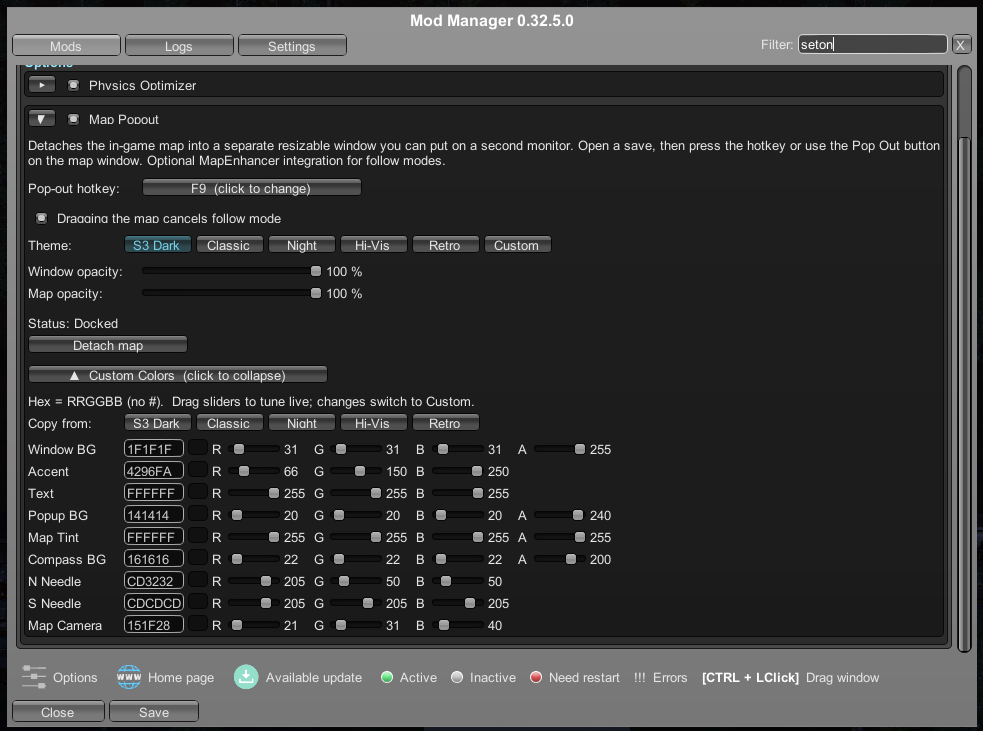
Configure everything from the S³ UMM settings page: hotkey, drag-to-cancel follow behavior, right-click to recenter on player, theme, three independent opacity controls (Window, Map Elements, Map Background), icon culling and EOTD settings, the detach button, and a full per-element custom color editor.
Most settings are also reachable directly from the gear menu on the map toolbar without opening UMM.
Themes
Six themes built in: five named presets plus a Custom slot you tune with per-element hex input and live R/G/B/A sliders. Any preset can be copied into Custom as a starting point. Theme changes apply instantly without restarting.
 S3 Dark (default) |
 Railroader Classic |
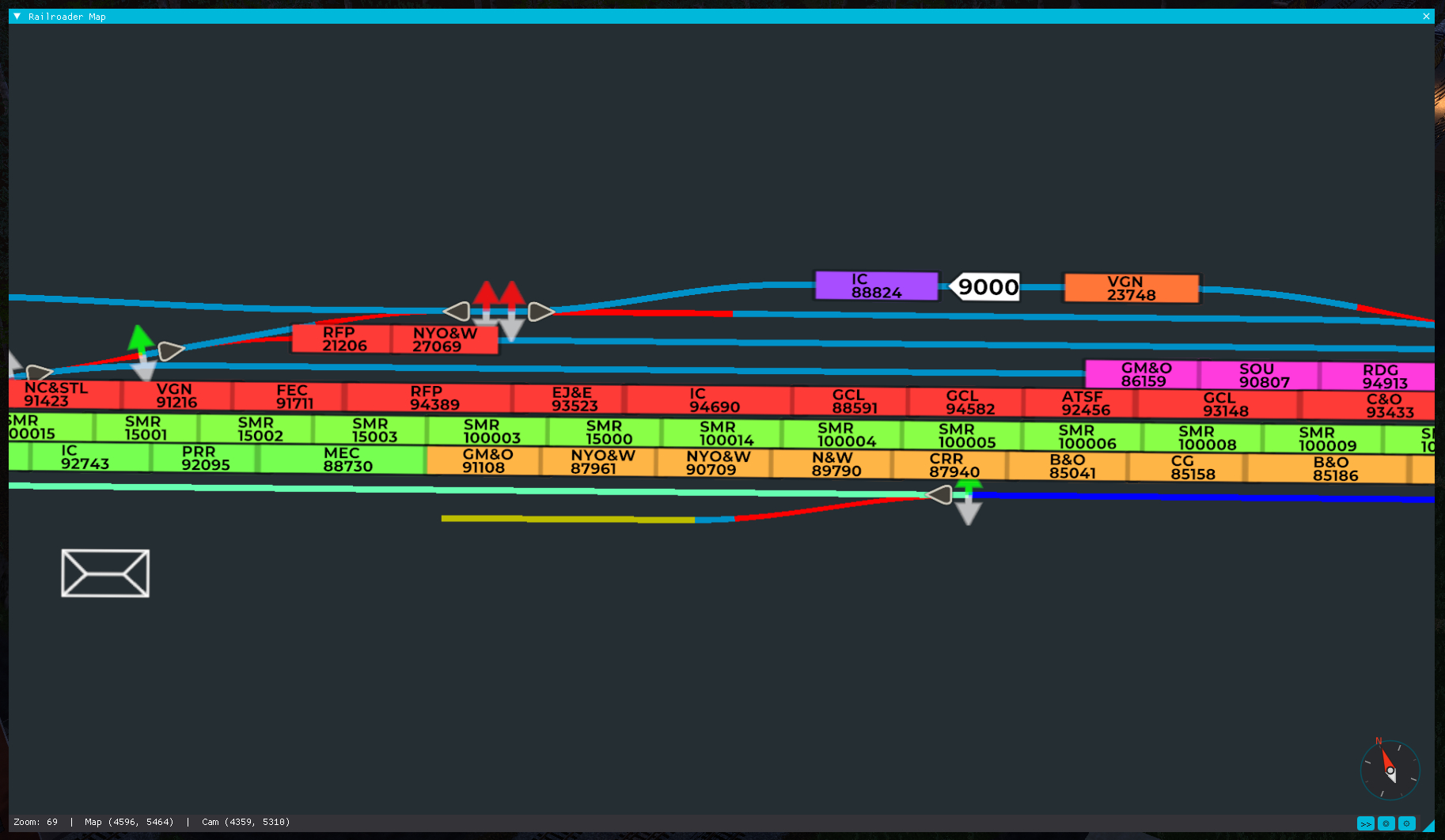 High Visibility |
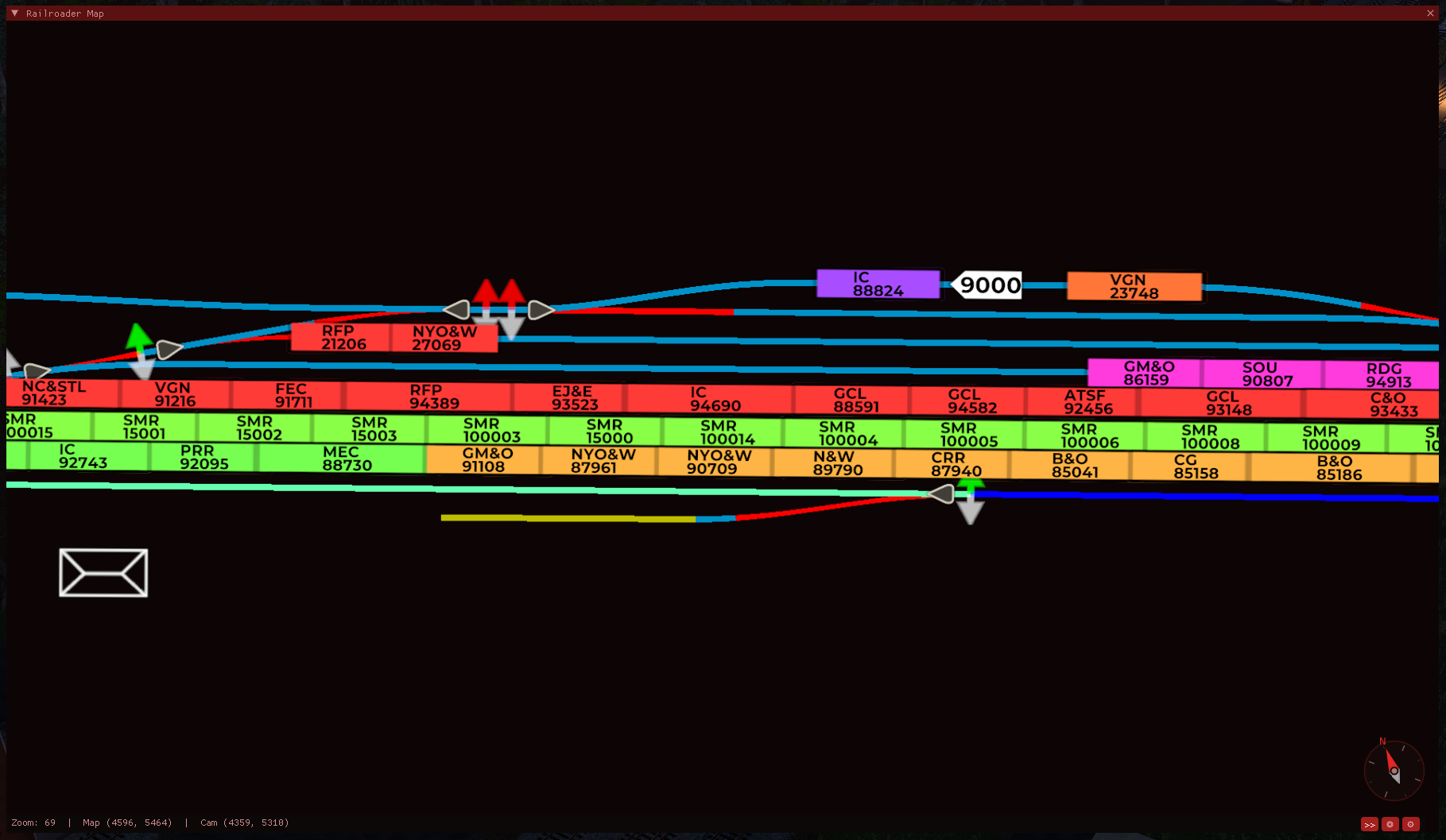 Night Mode |
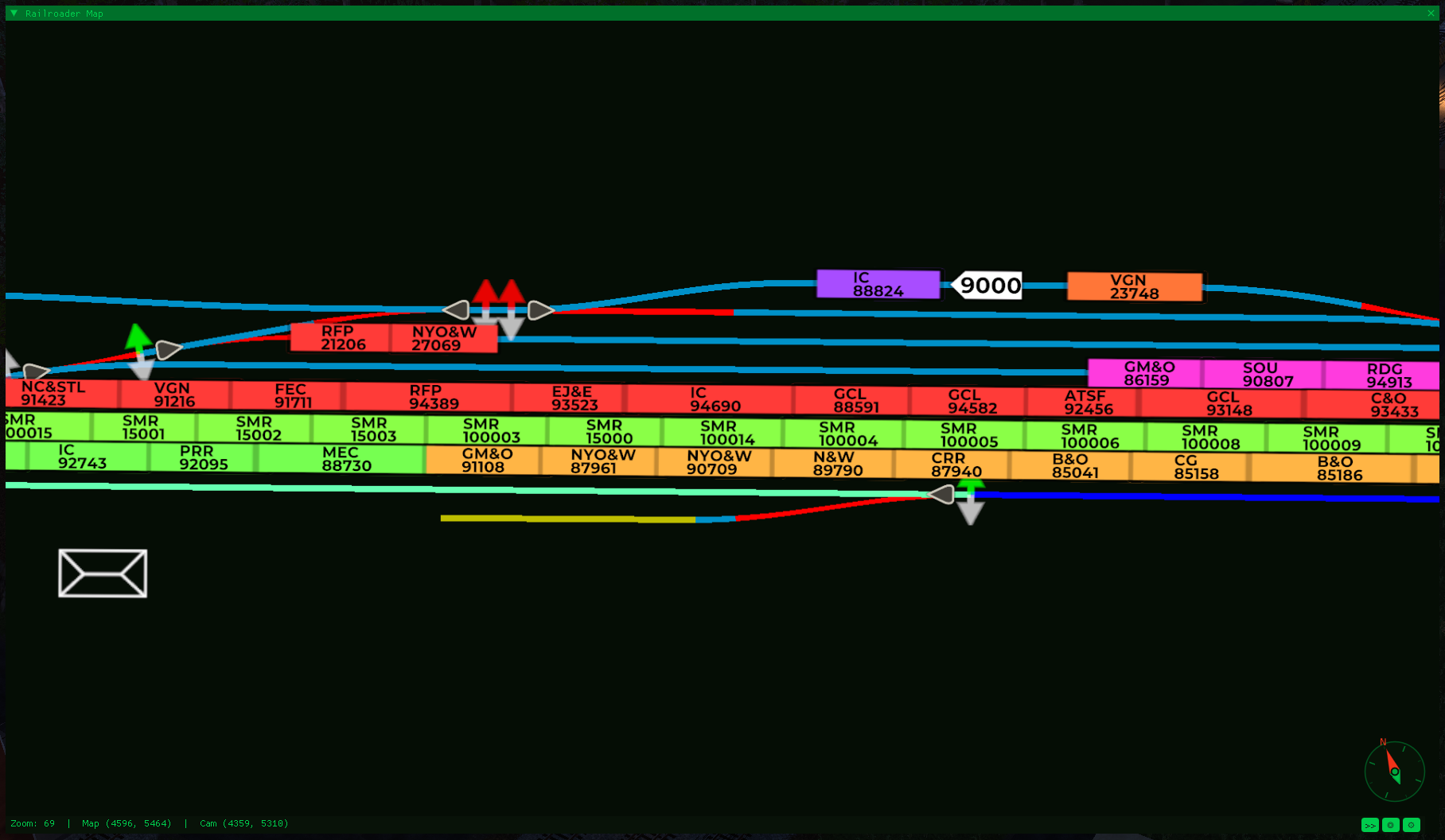 Retro Terminal |
+ fully customizable |
Transparency
The in-game overlay has three independent opacity controls. Window sets the chrome opacity (toolbar, compass, and frame), with an automatic minimum of 50% while the mouse is over the overlay so the controls stay reachable at any setting. Map Elements fades the map image independently. Map Background controls how transparent the empty space behind terrain is - turn it down and the game world shows through where there is no map content.

Map Rotation
Rotate the map manually with the rotation control, or lock it to your player camera heading so it always faces the direction you're looking. Switch between free and locked at any time without losing your current view.
Icon Controls
Each car icon on the map is a live Canvas element. On a large session with many cars visible, the rendering cost adds up - testing showed a 3-12 FPS improvement when zoomed out over a busy portion of the map with culling enabled.
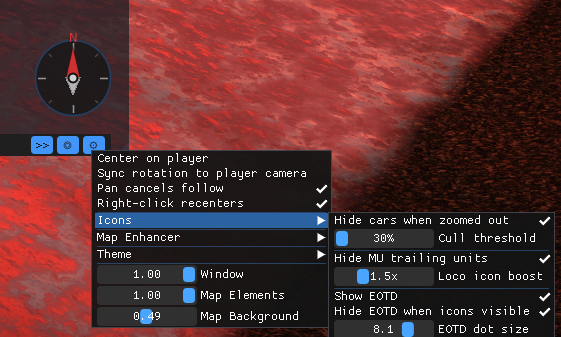
When zoomed out past a configurable threshold (default 40%), car icons fade out and only locomotive icons remain. Locomotives scale up automatically so they stay easy to spot. A separate option hides MU trailing units, keeping just the lead locomotive per consist. A blinking red EOTD dot marks the rear of each consist so you can still gauge train length at a glance.
All of these options are available from the gear menu Icons submenu on the map toolbar, or from the S³ UMM settings page.
Track & Industry Labels
The map labels named tracks and industries, read live from the game's industry data so mod-added tracks appear automatically. Labels adapt to zoom in three stages: individual per-track labels (aligned to the track, with leader lines) up close, merged labels at medium zoom, and one large label per industry area when zoomed out. Font size, leader-line thickness, merge distance, and every zoom threshold are configurable from the gear-menu Labels submenu or the S³ settings page.

Popout Window
Pop the map into a detached native OS window. Drag it to any monitor, resize it freely, and pin it always-on-top via the window's right-click title bar menu. Re-attach it back into the game overlay at any time from the settings panel without losing your position, zoom, or rotation.

MapEnhancer Integration
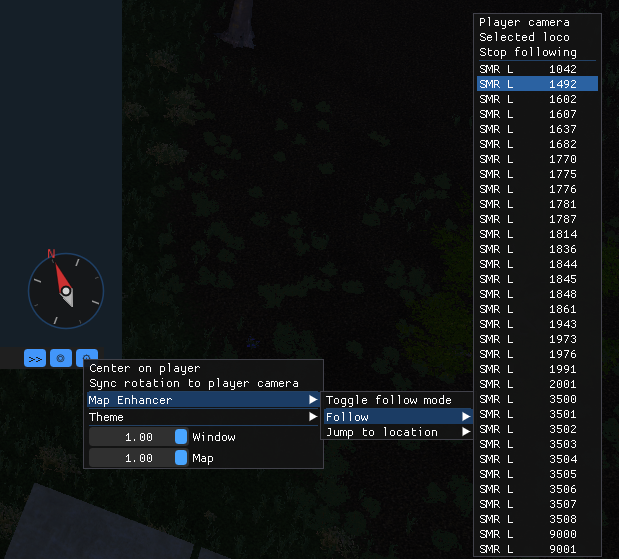
S³ auto-detects any installed version of MapEnhancer at startup with no configuration required. If MapEnhancer is installed, the toolbar gear menu expands with follow controls and a settings panel. The Follow submenu lets you follow the player camera, the selected locomotive, or any consist picked from a live-updated list. Jump to Location is also available. The Settings panel gives you live control over all MapEnhancer rendering options without leaving the map: marker visibility toggles, scale sliders for flares, junctions, track lines, and crossings, and bulk switch reset buttons.
Both the original official builds and the community fork are supported. Features added by the community fork - turntable control, road crossing markers, passenger stop tracking, industry area colors, modded spawn points, and bulk switch reset - are grayed out when an older build is detected. All controls that the installed version supports remain fully functional.
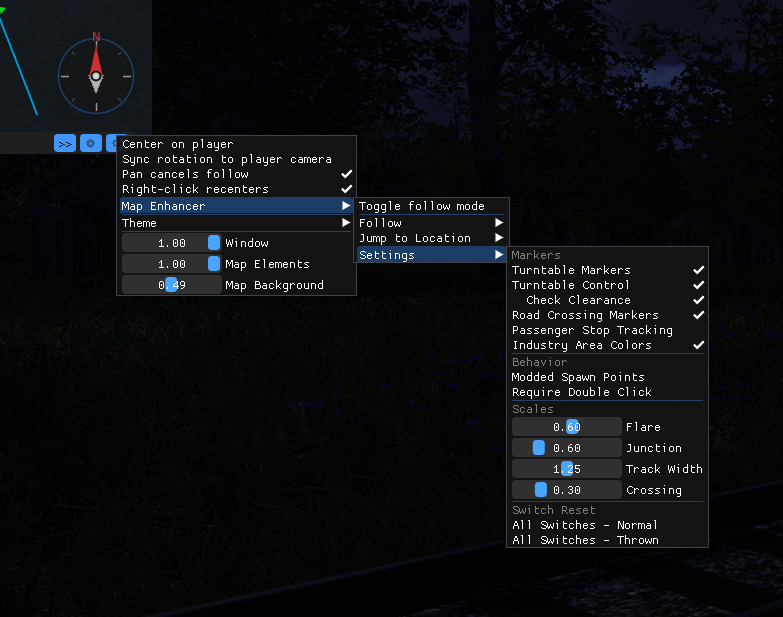 Community build |
 Older build - community features grayed |
Physics Optimizer
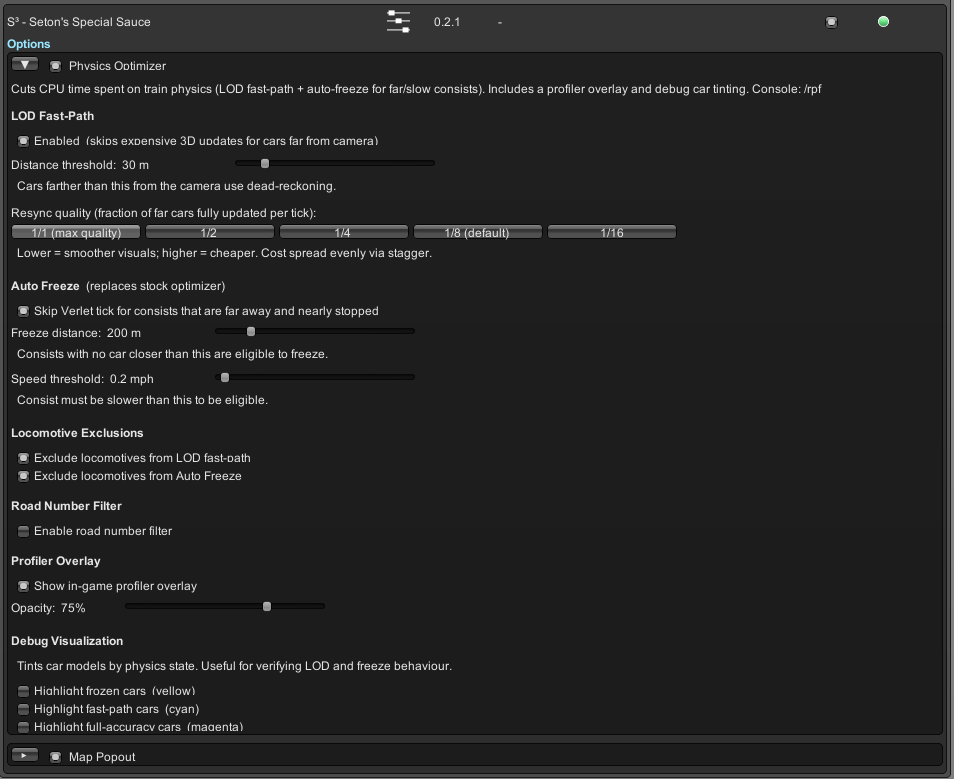
Reduces CPU time spent on train physics with two complementary strategies:
- LOD Fast-Path: cars beyond a configurable distance switch to dead-reckoning, skipping expensive 3D constraint updates. A staggered resync keeps them accurate without a sudden full-update spike.
- Auto Freeze: consists that are far away and nearly stopped skip the Verlet integration tick entirely, replacing the stock freeze heuristic with a tighter distance + speed threshold.
Locomotives can be excluded from either strategy. Debug car tinting (yellow = frozen, cyan = fast-path, magenta = full) lets you verify the LOD and freeze behavior in your session, and the Profiler module's overlay reports live per-car physics timings and fast-path/freeze counts.
Settings
Performance
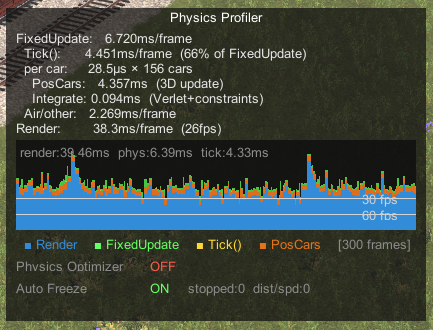
LOD fast-path and Auto Freeze together cut per-car physics cost from ~28.6 µs to ~10.5 µs (63% reduction) and FixedUpdate time from 6.7 ms to 3.8 ms on the same 156-car scene. Numbers from the built-in profiler overlay:
| Before | After |
|---|---|
 |
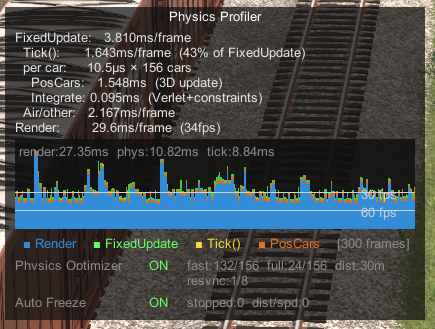 |
| Physics Optimizer OFF (6.7 ms/frame) | Physics Optimizer ON (3.8 ms/frame) |
Mesh LOD
Railroader has no level-of-detail system for rolling stock, so every car renders at full geometry no matter how far away it is. Mesh LOD adds one. Each car gets a four-level LODGroup built at load time:
- LOD0: full detail, up close.
- LOD1 / LOD2: progressive culling. Renderers are ranked by bounding-box volume (largest is the car body and trucks, smallest are bolts, grab irons, and rivets), and each level keeps a progressively smaller top fraction, so structural geometry survives while fine detail drops first.
- LOD3: a single 12-triangle proxy box, tinted to the car's own color, for cars far enough away that only their shape reads.
Transition distances are specified in metres (corrected for the game's LOD quality bias internally), and you can apply the system to locomotives, freight, or both independently. Because the LODGroup is rebuilt from the live car list, mod-added equipment is handled automatically.
This is a GPU-side optimization: it lowers triangle and draw cost for distant cars, so it helps most on large saves with many cars in view when you are GPU-bound.

All three LOD reductions side by side, with the transition distances set artificially short to put every level in one frame: full detail at right, structural-only with trucks and accessories culled in the middle, and the flat color-matched proxy box at left.

Profiler
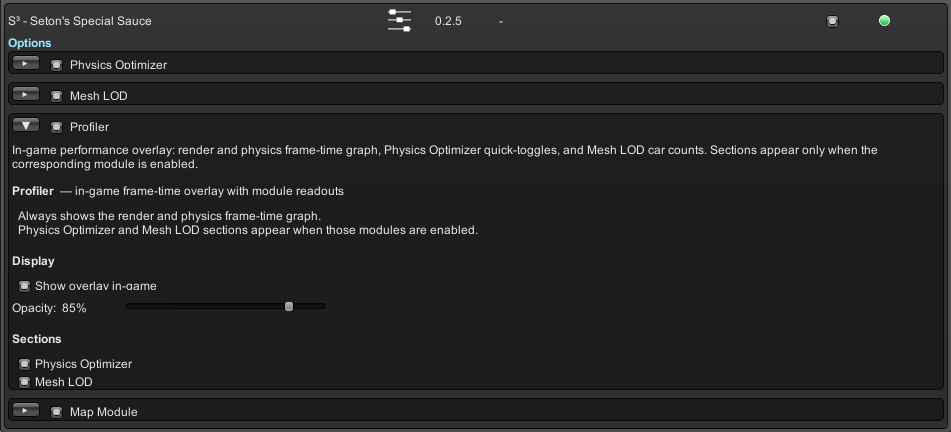
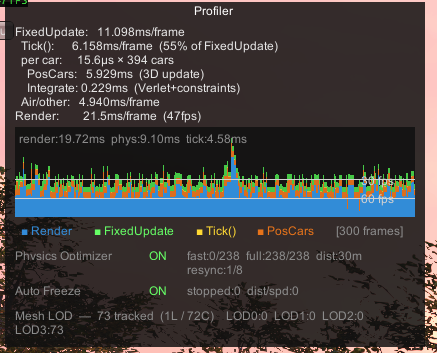
A unified in-game performance overlay. It always shows a render + physics frame-time graph (render, FixedUpdate, Tick, and PosCars times) and a timing report, and it grows extra sections for whichever optimization modules are enabled:
- Physics Optimizer: LOD fast-path and auto-freeze quick-toggles with live fast/full and frozen counts.
- Mesh LOD: total tracked cars, the locomotive/freight split, and how many cars sit at each LOD level right now.
Toggle the overlay with /rpf overlay, or from the Profiler settings page.
Migrating from the standalone mods
S³ replaces the separate Physics Optimizer (RailroaderPhysicsOverhaul) and
PopOut Windows (RRPopout) mods. Uninstall those before installing S³.
Settings do not carry over, so re-configure each module from the S³ settings page.
If these mods are detected you will be prompted to disable them in the S³ settings page.
Building
Requires the .NET SDK (dotnet). The native module additionally needs CMake +
the MSVC toolchain.
- Local test install:
.\dist\build-local.ps1builds and copies into the game'sMods\S3\folder. - Release zip:
.\dist\build-release.ps1producesdist\SetonsSpecialSauce-<version>.zipfor upload.
The game install path is set once in Directory.Build.props
(GameDir); override per-build with /p:GameDir=... or the build script's
-GameDir parameter.
Layout
src/            single managed assembly (S3.dll, netstandard2.1)
  Main.cs       UMM entry point
  Core/         module framework: IModule, registry, settings, settings panel
  Modules/      one folder per module
native/         shared Win32 + D3D11 + Dear ImGui external-window UI engine
dist/           build + packaging scripts